How can we help?
How to set up Google Authentication
20/04/2026 08:57:22
Step 1: Download Google Authenticator
- iOS: Search for 【Authenticator】on the App Store.
- Android: Search for 【Authenticator】on Google Play (your device must support Google services).

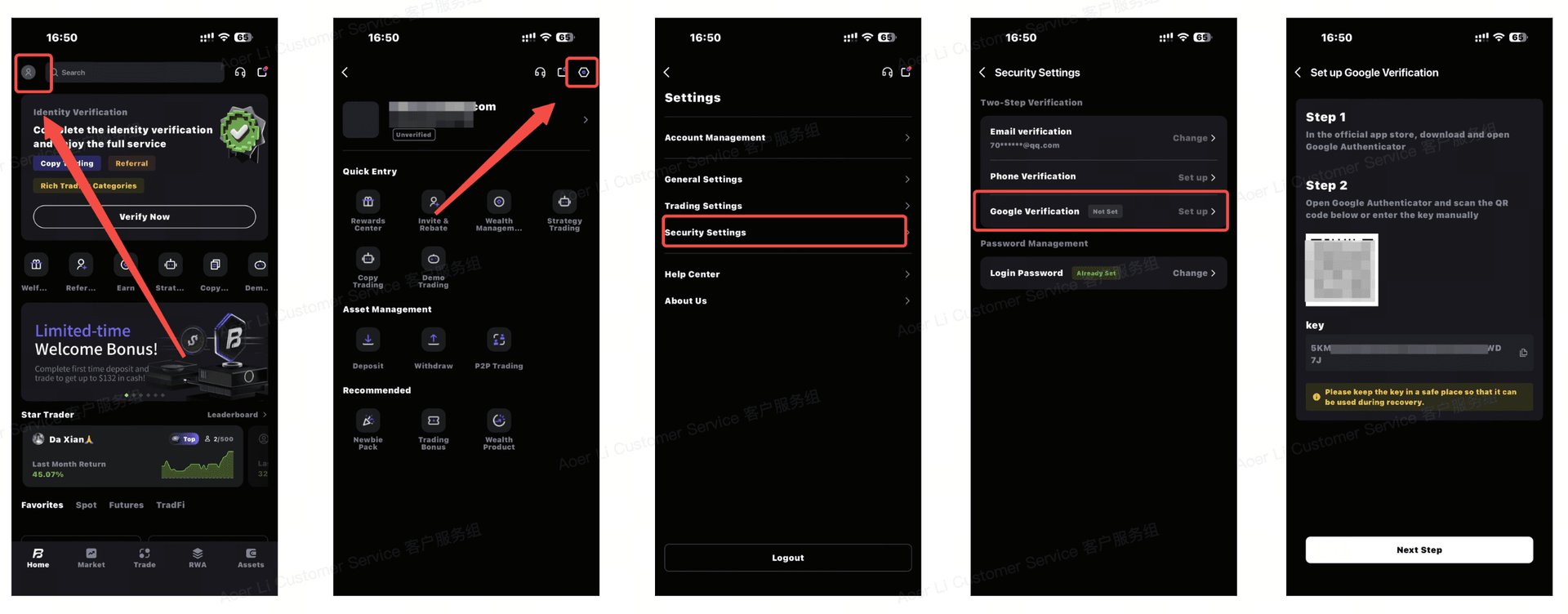
Step 2: Access Security Settings
- Click the avatar in the upper left corner to enter the personal center.
- Tap the gear icon in the upper right corner to open Settings.
- Select Security Settings.
- Click 【Google Authenticator】to generate and copy your secret key.
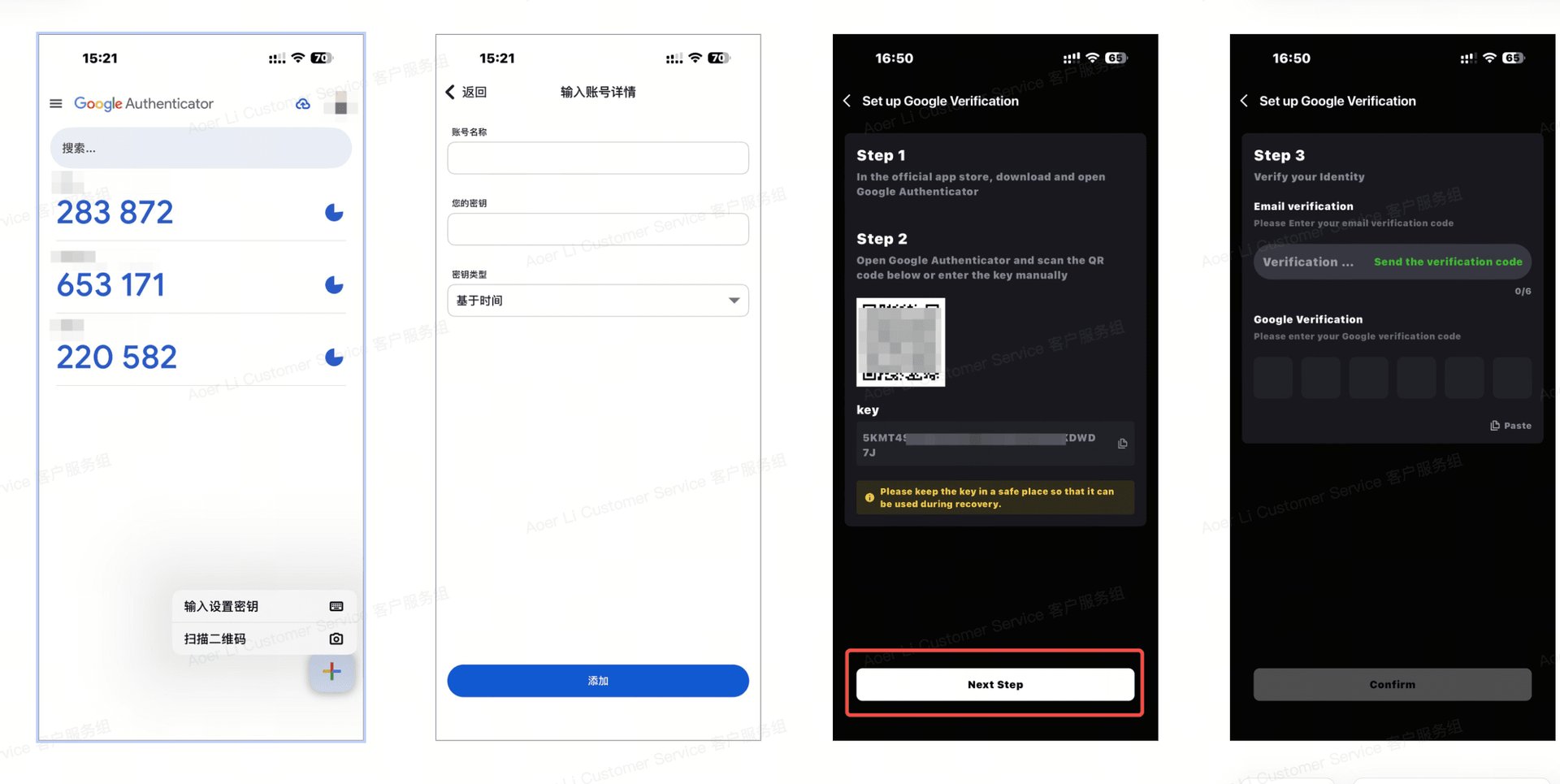
Step 3: Complete Activation
- Open the Google Authenticator app, tap the “+” icon, then choose Scan a QR code or Enter a setup key.
- Name your account, paste the copied secret key, then add the account.
- Go back to Bifu, click 【Next】, and enter the 6-digit dynamic code to finish binding.


Trading
Risk Warning
Trading foreign exchange, contracts for difference, over-the-counter derivatives, margin products, and other leveraged financial instruments involves a high level of risk and may not be suitable for all clients. These products can result in losses that may exceed your initial deposit, depending on the product terms, account settings, and applicable legal protections. You should not trade unless you fully understand the nature of the products, the risks involved, and the extent of your exposure. When trading derivative products, you do not own or have any rights to the underlying asset.
The information provided on this website is general in nature and does not take into account your investment objectives, financial situation, trading experience, or particular needs. Nothing on this website should be construed as personal financial advice, investment advice, an offer, invitation, solicitation, recommendation, or inducement to buy, sell, subscribe for, or dispose of any financial product or service.
All market commentary, educational materials, research content, platform information, and other materials published on this website are provided for general information and reference purposes only. Past performance, historical data, examples, forecasts, or simulated results are not reliable indicators of future performance.
Access to Bifu Markets’ products and services is not available in all jurisdictions. We do not open accounts for residents of certain countries and jurisdictions, including but not limited to the United States, Australia, Canada, and the Democratic People's Republic of Korea.
By accessing this website, you confirm that you are doing so on your own initiative and that you are responsible for ensuring that your use of this website and any services provided by Bifu Markets complies with the laws and regulations applicable to you in your jurisdiction.
Bifu is operated by Bifu Markets (Pty) Ltd.
Registered address: Norwich Place West, 2nd Floor, Cnr 5th and Norwich, Sandown, Sandton, Gauteng, South Africa.